
AmbientCast
Your printer, on the big screen.
A live camera feed and full print status on your Apple TV — no phone in the middle, no Home Assistant box, no account. AmbientCast finds your printer on your own network and talks to it directly.
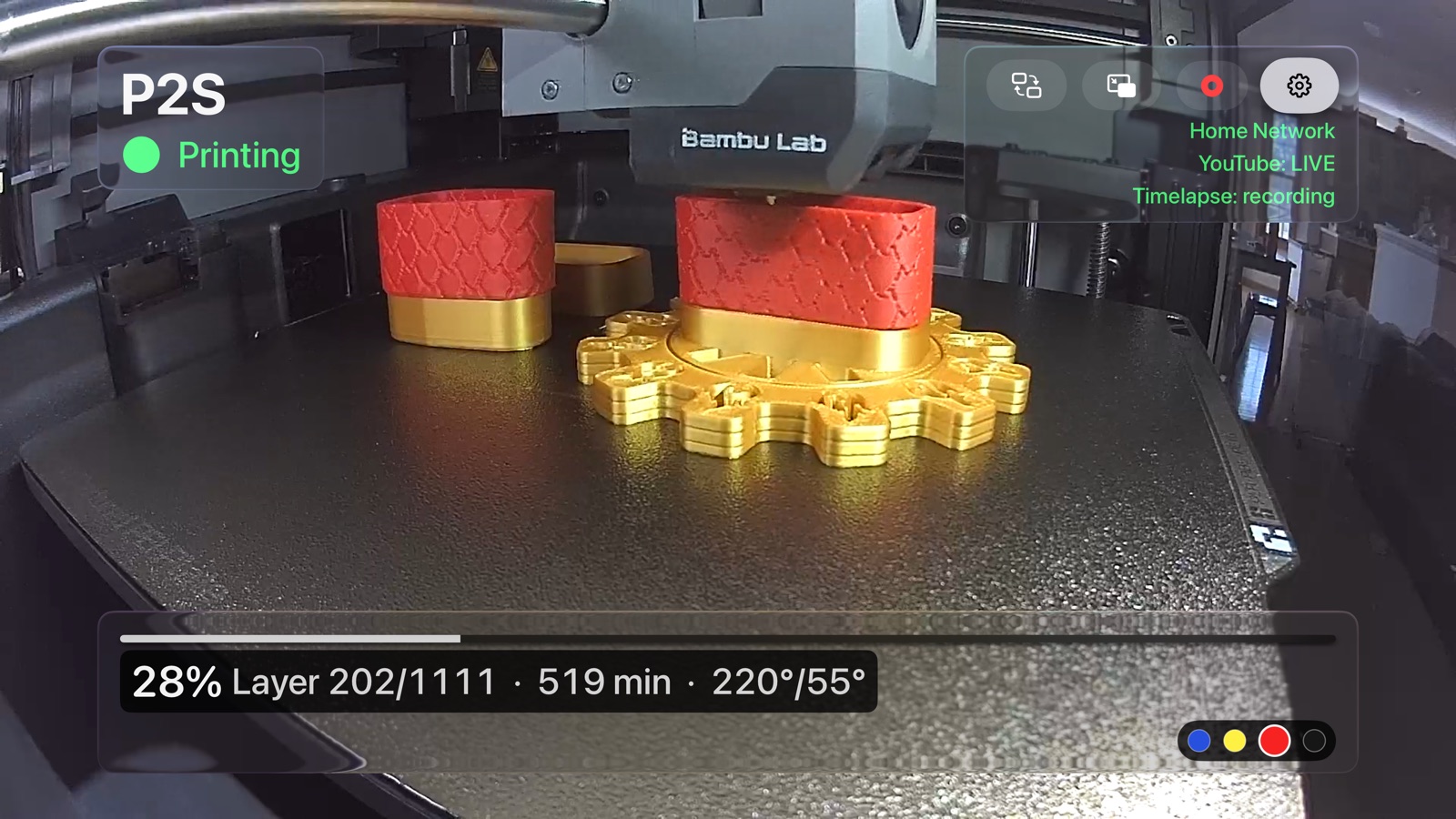
Setup is one number
Your printer announces itself, so there is no address to look up. Enter the access code from the printer's own screen, once, and the dashboard opens straight to the feed on every launch after that.
You do not need to turn on the printer's LAN Only Mode. Bambu Handy keeps working exactly as it does now.
Nothing goes through Bambu's servers
Status and video come straight from the printer to your device. There is no sign-in, no password, and no Bambu Lab account — the app never contacts their servers at all.
If you turn on YouTube Live, that feed goes to YouTube, because that is what you asked it to do. The only other thing that leaves your device is a short list of settings the app keeps in step across your own devices through your iCloud account — no credentials among them, and the privacy policy names every item.
Keep watching while you do something else
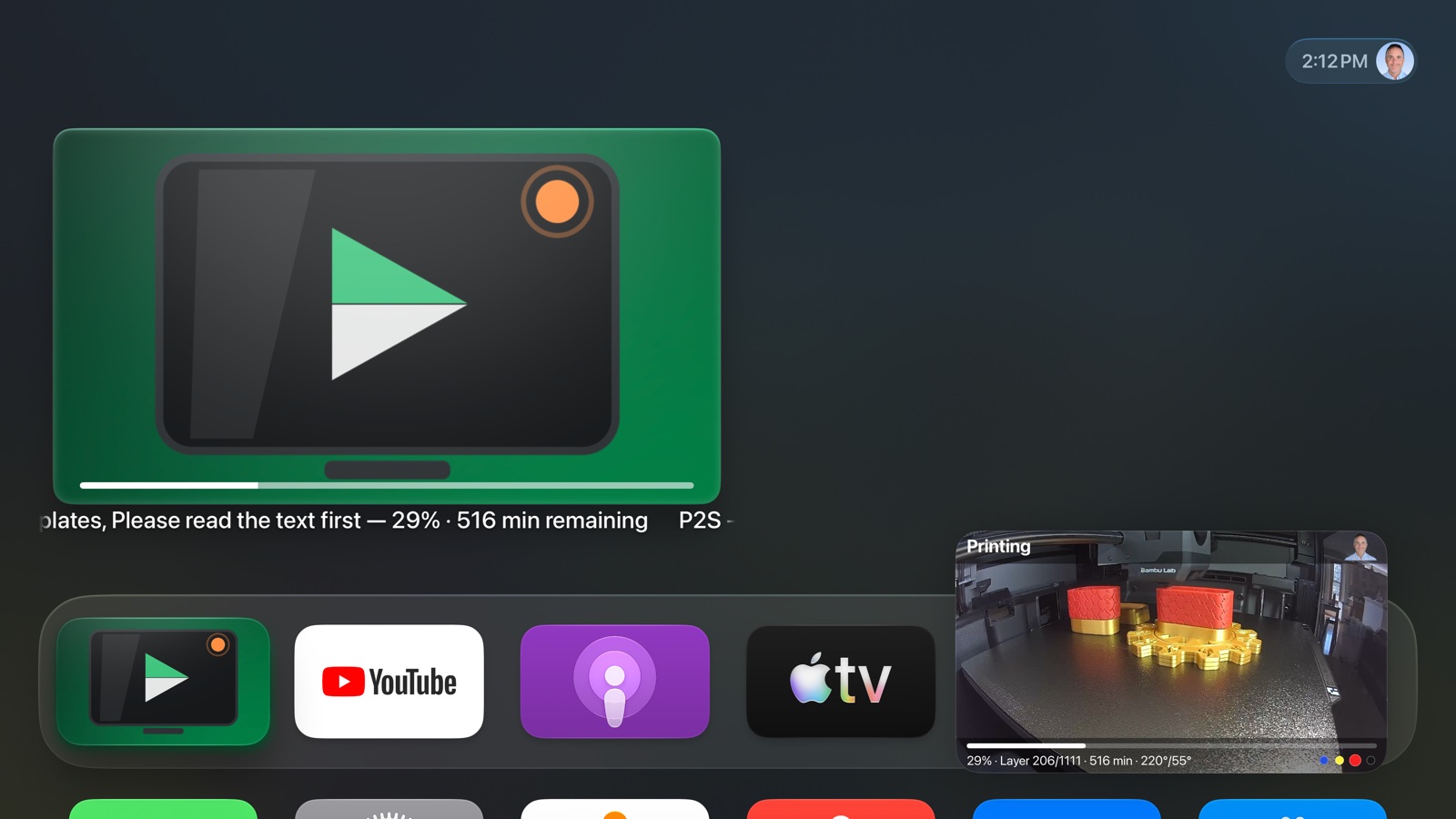
Picture in Picture floats the feed in a corner while you use the rest of the Apple TV. Optional YouTube Live broadcasting shares the same feed with someone who isn't home, and can start and stop with each print automatically.
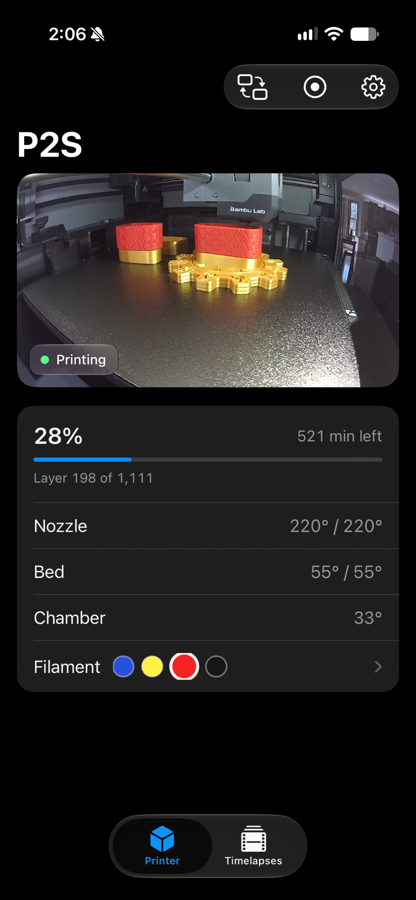
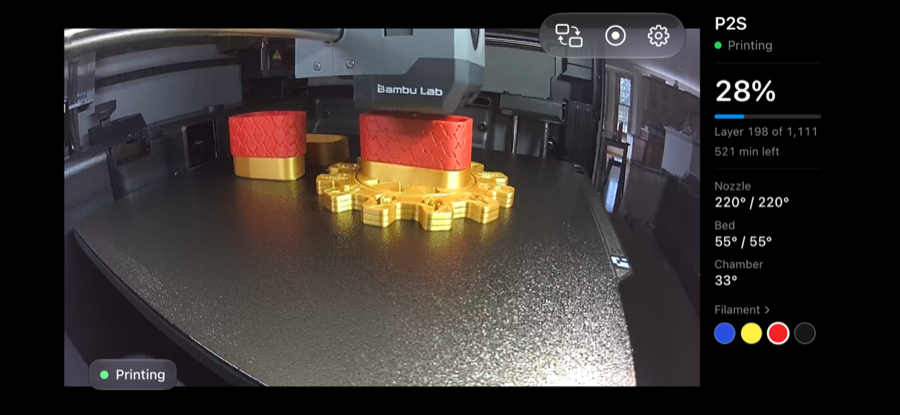
Also on iPhone and iPad
The same dashboard, the same direct connection. Useful on the same network as the printer.
What you'll need
A Bambu Lab printer and an Apple TV on the same network, and the printer's access code. Watching from outside the house needs a VPN back home — the app talks to the printer directly and does not route through anyone's cloud, which is the trade that makes everything above true.
Questions
Do I need a Bambu Lab account?
No. AmbientCast never contacts Bambu's servers. Earlier versions could sign in; that was removed in 1.3.
Will this stop Bambu Handy working?
No. You do not need the printer's LAN Only Mode, and nothing AmbientCast does changes how the printer talks to Bambu.
Can I watch from work?
Only over a VPN back to your home network. The app reaches the printer directly, so if your device cannot reach the printer, it cannot show you anything.
Where do I find the access code?
On the printer: Settings → LAN Only. The app shows you the exact screen during setup.
Does it work on more than one printer?
Yes — add as many as you like and switch between them. Each device keeps its own access codes; they are never sent anywhere, including to your other devices.
Links
- Timelapses on YouTube — print timelapses recorded and uploaded by AmbientCast itself
- Help test it — the app is developed against two printers, and there is a specific open question attached to the A1, the A1 mini, the A2L and the AMS HT